

We have all been there staring at a red line on the dashboard wondering why Google Maps sent us into gridlock when a side road looks wide open. Google Maps is more powerful than ever but it is also more complicated.
Default settings and hidden features often mean the app cares more about saving fuel or data than getting you there fast. According to INRIX traffic data the average driver loses over 42 hours a year sitting in congestion.
You do not want to add to that number just because a toggle was switched off. This guide reveals the 9 most common user errors and the settings you need to change immediately.
Maps Masterclass
Destination Reached!
You mastered the hidden settings and saved time.
1. Blindly Trusting the Green Leaf Default
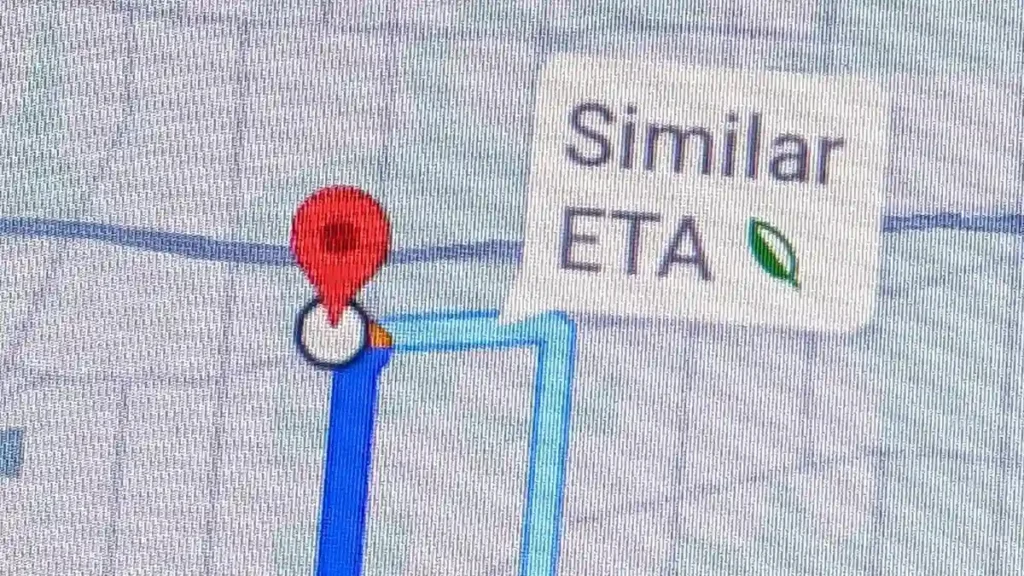
There is nothing worse than realizing you have been driving way under the speed limit on a back road just to save a teaspoon of gas. This happens because Google Maps defaults to Eco-friendly routing which prioritizes fuel efficiency over pure speed.
You will see a small Green Leaf icon on your route preview which means the algorithm picked the path with the fewest hills and steadiest speeds. While saving gas is good sometimes that green route adds significant time to your trip compared to the standard route.
- Always compare the time difference between the green route and the gray alternative route
- Go to Settings then Navigation then Route options to change this preference
- Toggle off Prefer fuel-efficient routes if you want the fastest path every time
- Check this setting after every app update as it often resets to default
2. Ignoring Immersive View for Complex Arrivals
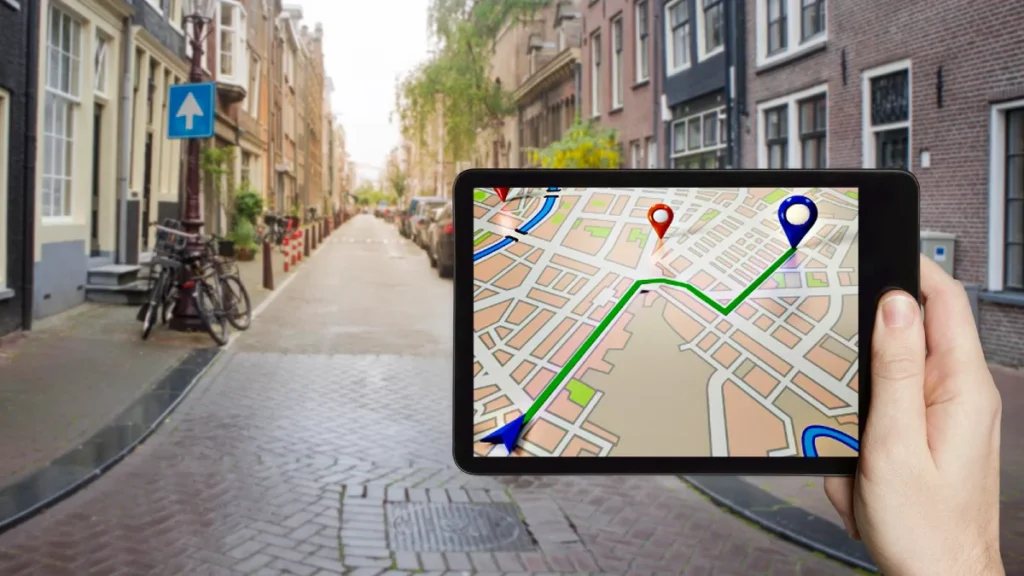
Have you ever arrived at the pin location but spent another ten minutes circling the block looking for the actual parking entrance. It is frustrating to drive blind into a new city so Google rolled out Immersive View for Routes to solve this specific problem.
This feature uses AI to stitch together billions of Street View images so you can fly over your route virtually before you leave the house. Many drivers ignore this tool and end up confused at complex intersections or missing hidden driveways.
- Tap the route preview card before hitting Start to enter Immersive View
- Scout for specific parking garage entrances so you know exactly where to turn
- Identify visual landmarks like specific buildings or signs near your destination
- Check for tricky one-way streets or bike lanes that might make turning difficult
3. Guessing Your Departure Time

Leaving at eight in the morning versus fifteen minutes later can change a commute by thirty minutes or more. Most users make the mistake of typing in a destination and hitting Start immediately which means you are gambling with rush hour traffic.
The Depart at feature uses historical data to predict future gridlock and shows you the best window of time to leave. You might find that waiting just a short while lets the traffic clear getting you there faster and with much less stress.
- Tap the three dots in the top right corner before starting navigation
- Select Set depart or arrive time to see the traffic prediction wheel
- Scroll through the times to watch the estimated duration number change
- Find the sweet spot where the drive time drops significantly
4. Breaking the Route to Find Food

Exiting your navigation to search for gas near me is a major error that costs you time and frustration. When you end your current trip to search for food or gas you delete your optimized long-haul route entirely.
When you restart the navigation later the algorithm resets and might route you back into traffic you had successfully avoided earlier. It acts as if you are starting a brand new trip rather than continuing your current journey.
- Tap the Magnifying Glass icon on the main map screen while driving
- Select a category like Gas stations or Restaurants to see options
- Choose a location that is directly along your current green line
- Add the stop without breaking your main navigation thread
5. The EV Configuration Oversight
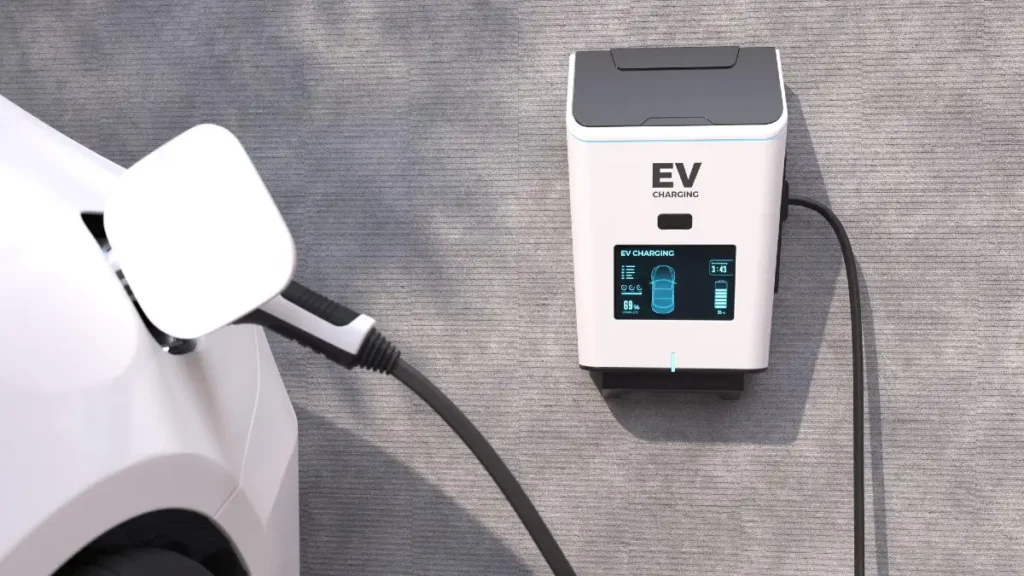
If you drive an electric vehicle, this is crucial because drivers often get routed to chargers that are too slow. This happens when you do not give the app the right data and you might end up at a station that takes an hour to charge.
You need to update your vehicle profile so the app knows exactly what plug type and charging speed you require. Google Maps will then prioritize routes with fast chargers that actually fit your car which can shave hours off a road trip.
- Go to Settings and select Your Vehicle to configure your profile
- Select your specific plug type such as NACS or CCS
- Set your preferred charging speed to 150kW or higher for faster stops
- Filter map results to only show chargers compatible with your plug
6. Relying on Live Data in Dead Zones

Losing your signal in a rural area or a concrete city canyon usually results in a missed turn and frustration. Google Maps tries to load data live as you drive but if the cell network fails the map goes blank instantly.
You are left guessing which exit to take unless you have prepared ahead of time by downloading the area directly to your phone. This creates a digital safety net that ensures your GPS keeps working even when your 5G connection drops completely.
- Tap your Profile Picture and select Offline maps
- Choose Select your own map and zoom out to cover your travel area
- Download the map while on Wi-Fi to save your mobile data
- Navigation and search will continue to work perfectly without a signal
7. Ignoring Glanceable Directions on Lock Screen

Fumbling to unlock your phone to see the next turn is dangerous and slows down your reaction time while driving. By the time you use FaceID or type your passcode you might have already passed the exit you needed to take.
Many users leave the Glanceable directions feature disabled which prevents the app from showing real-time ETA and turn arrows on your lock screen. Enabling this lets you see your next move instantly without ever touching your device.
- Go to Settings then Navigation to find this feature
- Toggle on Glanceable directions while navigating to activate it
- See your ETA and next turn arrow directly on your lock screen
- Monitor your progress easily on iPhone Dynamic Island if applicable
8. Walking with an Uncalibrated Compass
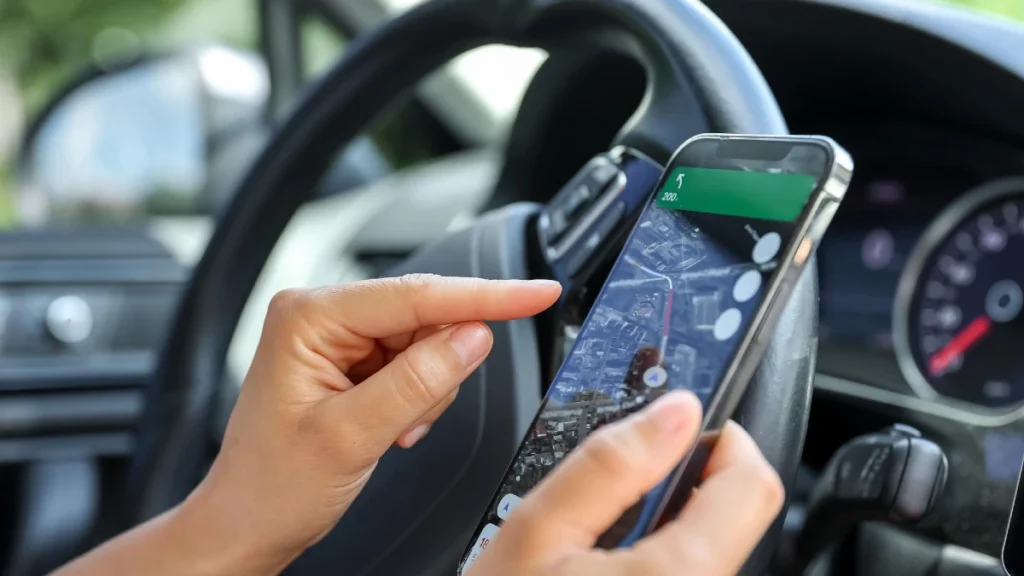
We have all seen the blue beam that is too wide where you walk two blocks in one direction only to realize it was wrong. This is often called the Parked Car phenomenon where metal in your car or tall buildings mess up the compass sensors.
Google Maps does not know which way you are facing so it guesses unless you take a moment to calibrate it properly. Using the camera to scan your surroundings allows the app to pinpoint your exact orientation immediately.
- Tap the Blue Dot on the map when you are unsure of your direction
- Select Calibrate with Live View from the menu options
- Point your camera at buildings and signs around you for a few seconds
- Wait for the beam to narrow and show you the correct walking direction
9. Skipping the Toll Roads Toggle Check
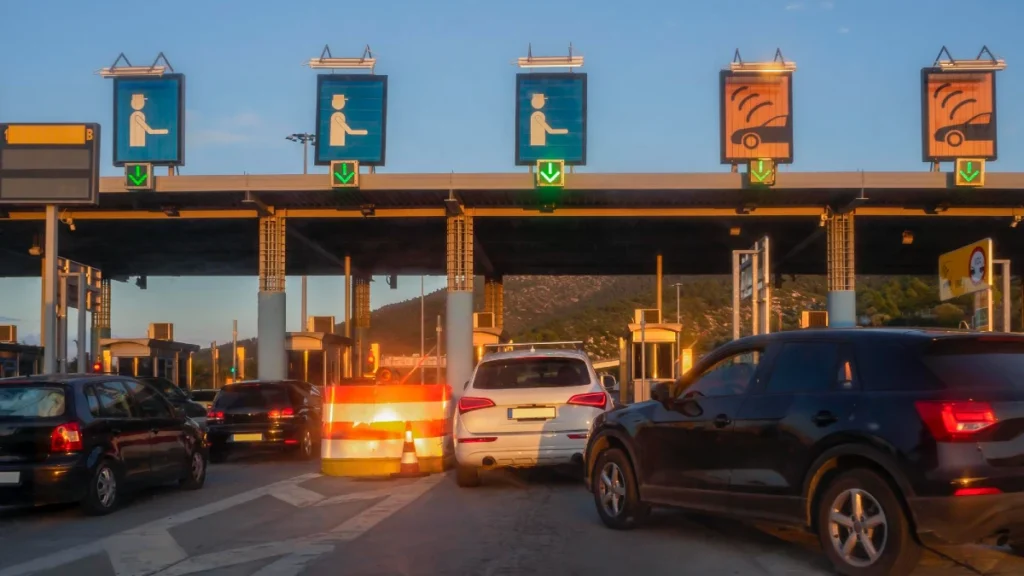
Sometimes paying a small toll fee saves you forty minutes of driving in heavy traffic. Many users set Avoid Tolls years ago to save money and completely forgot about it until now. In
2025 many cities use dynamic toll lanes that bypass massive traffic jams and if your settings block these automatically you never even see the faster option. It is always worth checking the route options before a long drive to see if the time savings justify the cost.
- Tap Options before hitting Start on any long trip
- Compare the time estimate between the toll route and the free route
- Disable the Avoid Tolls setting temporarily to see all available paths
- Decide if the time saved is worth the price of the toll
The Toll Road Decision
Tap Options
Tap Options before hitting Start on any long trip.
- $ 🕒
Compare Cost
Compare the time estimate between the toll route and the free route.
See All Paths
Disable “Avoid Tolls” temporarily to see all available options.
Is It Worth It?
Decide if the time saved is worth the price of the toll.